Inner Circle Trade Journal
Send MessageMetaTrader EA's cannot be installed on a Smartphone. They need to be installed on your desktop PC running MetaTrader 4 or 5 only.
Should you not have access to MetaTrader on your desktop, I recommend using a small cheap VPS which can be provided.
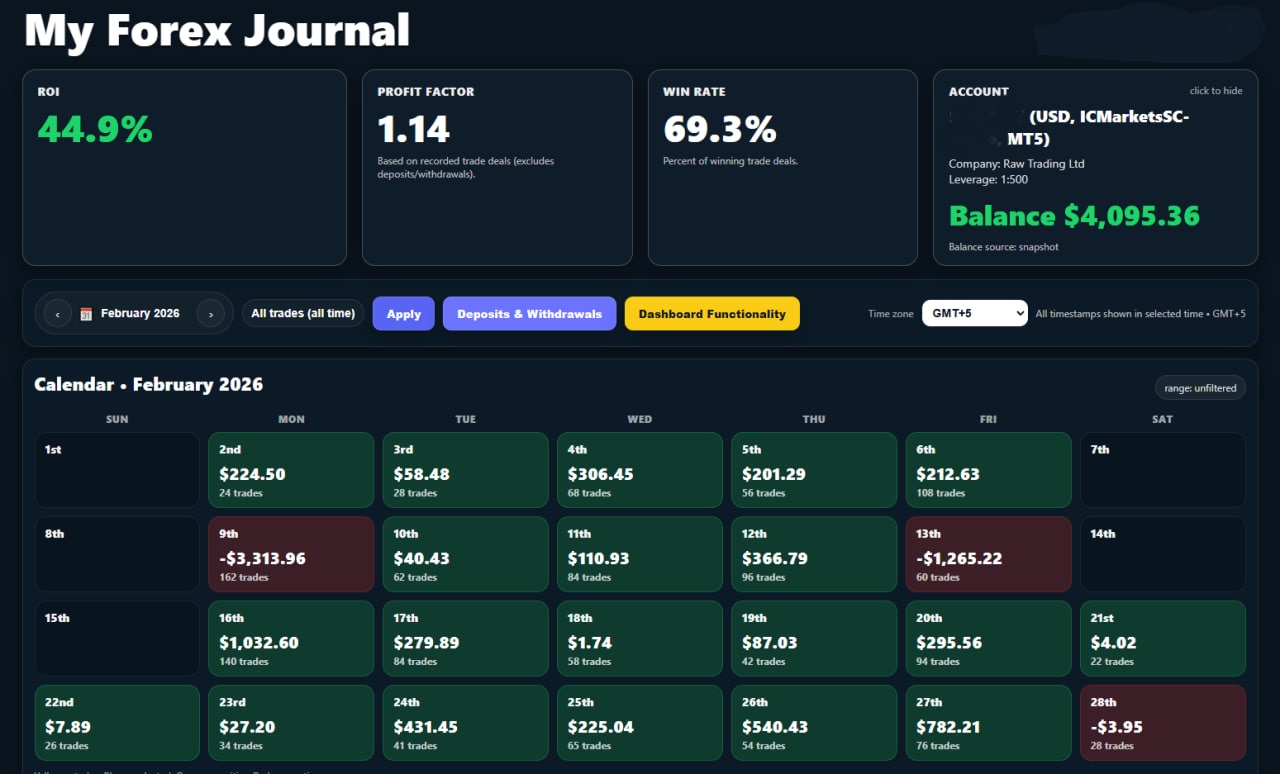
The Trade Journal gives you a clean, powerful dashboard for monitoring trade performance, calendar-based results, ROI, win rate, profit factor, deposits/withdrawals, and account analytics — all in one place. All in real time
You can use this trade journal on multiple accounts of Metatrader. The one thing you must do is use a unique email address for every occurrence of the installation.
If you use the same email address on multiple EAs, it will stop the trade journal from working.
EA Downloads
MT4 EA (MetaTrader 4)
Download the MT4 EA file, then follow the install steps below (Open Data Folder → MQL4 → Experts).
Download MT4 EAMT5 EA (MetaTrader 5)
Download the MT5 EA file, then follow the install steps below (Open Data Folder → MQL5 → Experts).
Download MT5 EAMT4 Full Re-Sync (Help Video)
If any of your dashboard history is missing, this quick video shows how to run a full re-sync in MetaTrader 4.
MT5 Full Re-Sync (Help Video)
If any of your dashboard history is missing, this quick video shows how to run a full re-sync in MetaTrader 5.
How to Install the EA (MT4 / MT5)
- Open MetaTrader (MT4 or MT5).
- Click File → Open Data Folder.
- Open the folder:
MT4: MQL4\Experts
MT5: MQL5\Experts
- Copy the downloaded EA file into the correct Experts folder.
- Restart MetaTrader (or in the Navigator panel, right-click → Refresh).
- Drag the EA onto your chart and allow algo trading as needed.
Example EA Inputs ( What to Set )
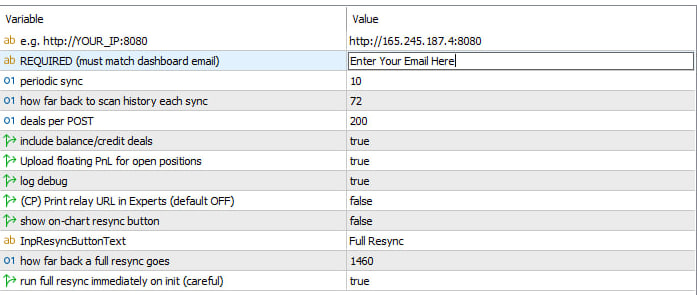
MT5 Inputs ( Example )
Reference for MetaTrader 5 (Inputs tab) after attaching the EA to your chart.
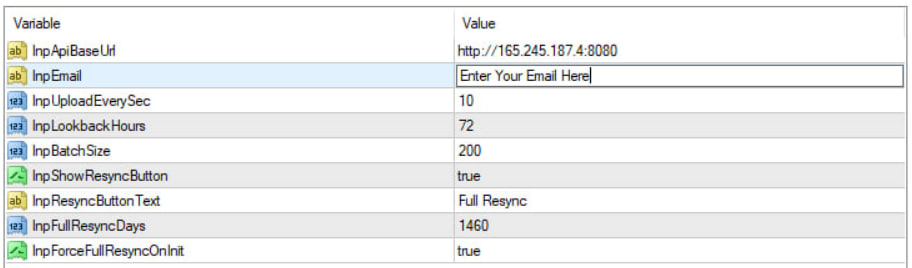
MT4 Inputs ( Example )
Reference for MetaTrader 4 (Inputs tab) after attaching the EA to your chart.
Required Setup (WebRequest URLs)
- Open MetaTrader (MT4 or MT5).
- Go to Tools → Options → Expert Advisors.
- Tick Allow WebRequest for listed URL.
- Add all four URLs below exactly as shown, then click OK.
- Restart MetaTrader (or remove + re-attach the EA).
- Make sure youe History Tab Is set to Show All History.
http://165.245.187.4:8080http://165.245.187.4http://157.245.193.184:8080http://157.245.193.184Dashboard Access
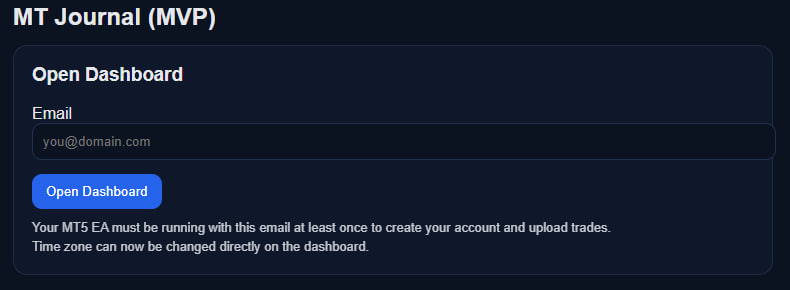
Open the Dashboard (Login)
Once your EA has uploaded at least once, open your dashboard here:
http://165.245.187.4:8080
Enter the same email your EA uses, then click Open Dashboard.
Dashboard Preview
This is what your trade journal dashboard will look like once your EA is connected.
Dashboard Quick Guide
Top summary cards
ROI — return for the current filtered view.
Profit Factor — trade-only metric (cash movements excluded).
Win Rate — win percentage for the active view.
Account / Balance card — shows account details and balance source. Also allow the top-right card to be hidden (“click to hide”).
Calendar navigation
Use the left/right arrows beside the month selector to move between months.
Click a calendar day tile to load that day’s trades in the table below.
The selected day is highlighted; today is highlighted separately.
Range filter
Choose a range and click Apply:
- All trades (all time)
- Today
- Yesterday
- This week
- This month
- Last month
- This year
- Last year
- Custom Period
Time zone selector
Changes how timestamps are displayed across the dashboard and trades list. It does not alter your stored data.
Deposits & Withdrawals
Opens the cash-movements popup (deposits/withdrawals), separate from trade performance metrics.
Trades table
After selecting a day or applying a range, review individual trades below the calendar (symbol, side, volume, P&L and timestamps).